
# 360° watermark template
Create a panoramic watermark that wraps correctly around a 360° skybox.
# Why a special template
A flat logo stretched across an equirectangular image warps at the poles and seams. Use a template sized for equirectangular projection so the mark stays readable in a 360° viewer.
# The default mark
The default Skybox AI watermark is a transparent PNG on a 2:1 canvas (this file is 6144×3072). The logo and the line of text sit on the top and bottom bands. Those bands meet at the horizon when the image wraps. The poles stay clear, so the mark does not stretch in a 360° viewer.
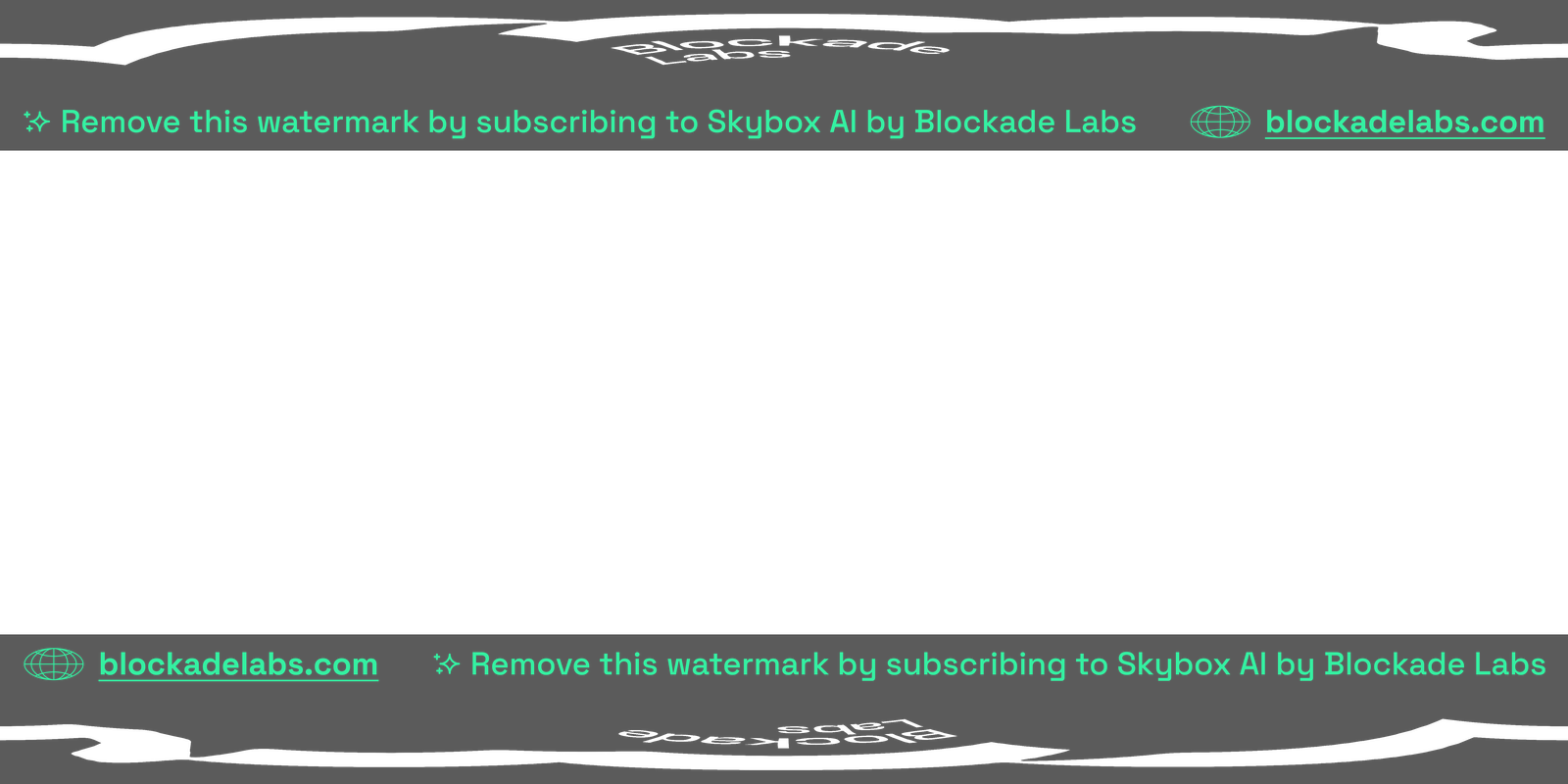
On a skybox, that same file wraps like this:
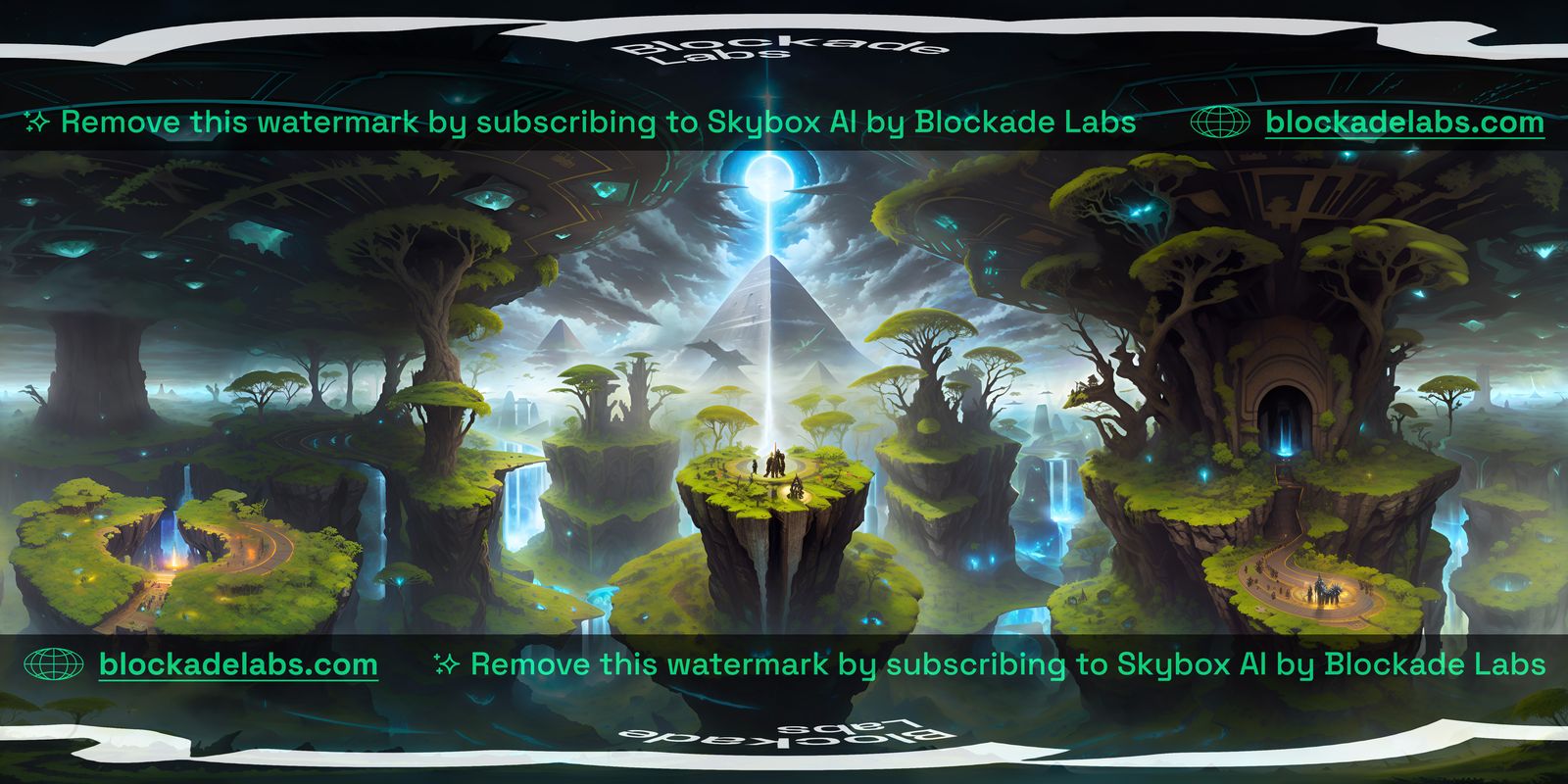
Use it as the layout reference for your own mark. A custom file is a transparent PNG, 2:1, under 2MB, with the mark on that horizon band. Full notes: How to create a 360° watermark template (opens new window).
# How to set it up
On Profile, Custom Watermark applies your PNG to JPG and PNG downloads.
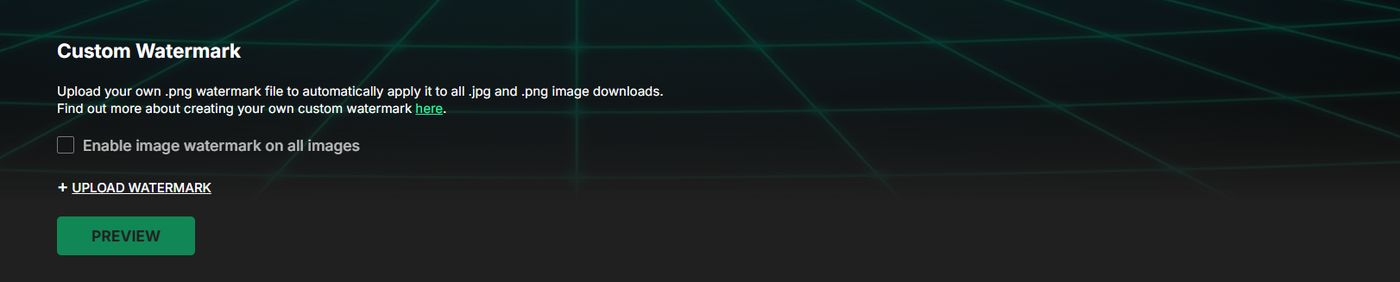
- Open Profile in Skybox AI (opens new window).
- Turn on Enable image watermark on all images.
- Upload watermark. Use a PNG prepared for a 360° image, with the mark on the horizon band.
- Preview, then download a JPG or PNG to check the wrap.
For layout examples and pixel guidance, follow the in-app preview after upload. If the watermark looks stretched in the viewer, revise placement on the equirectangular canvas and re-upload.