
# Workspace
How the Skybox AI web interface is organized.
# Viewer
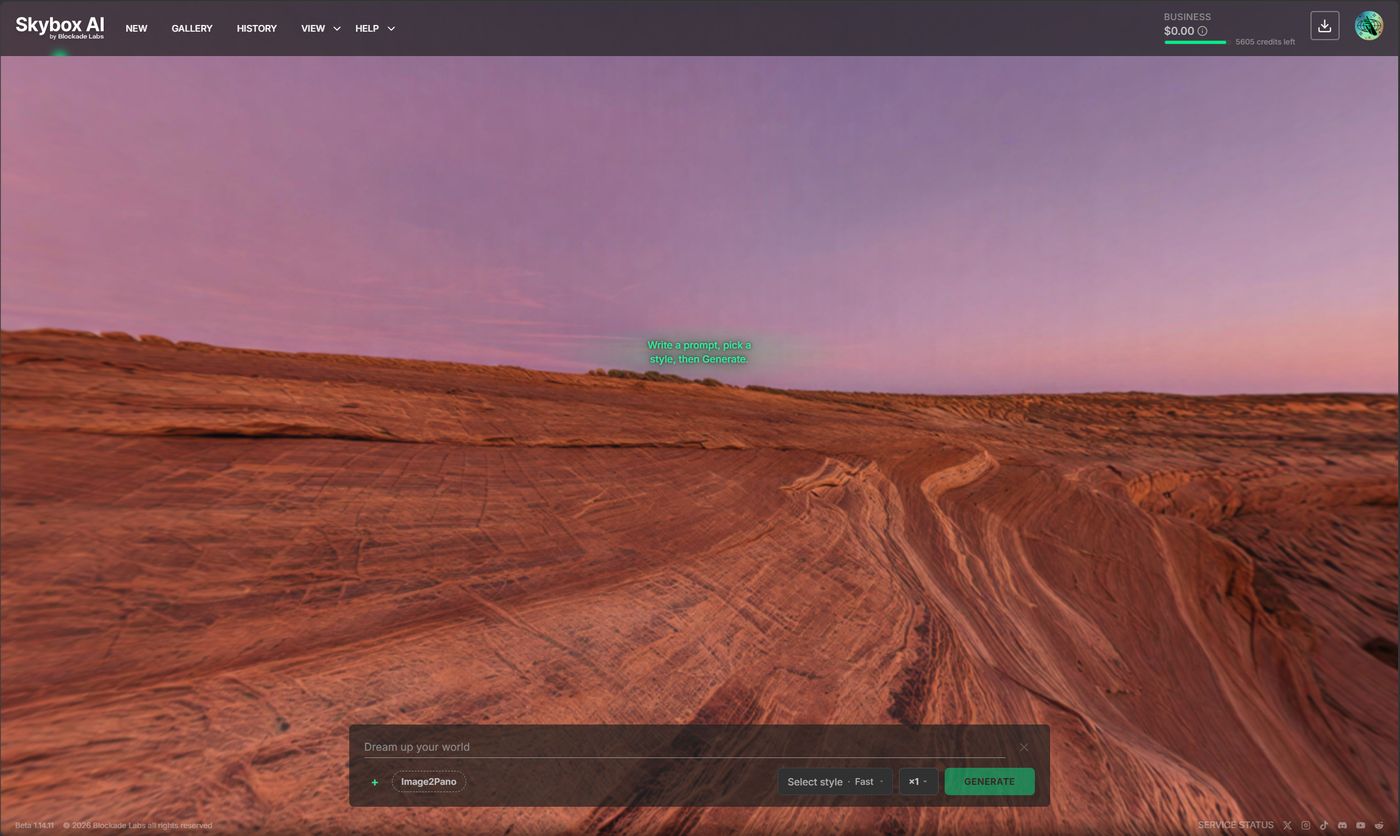
The viewer is where you inspect skyboxes in full 360°. Drag to look around.
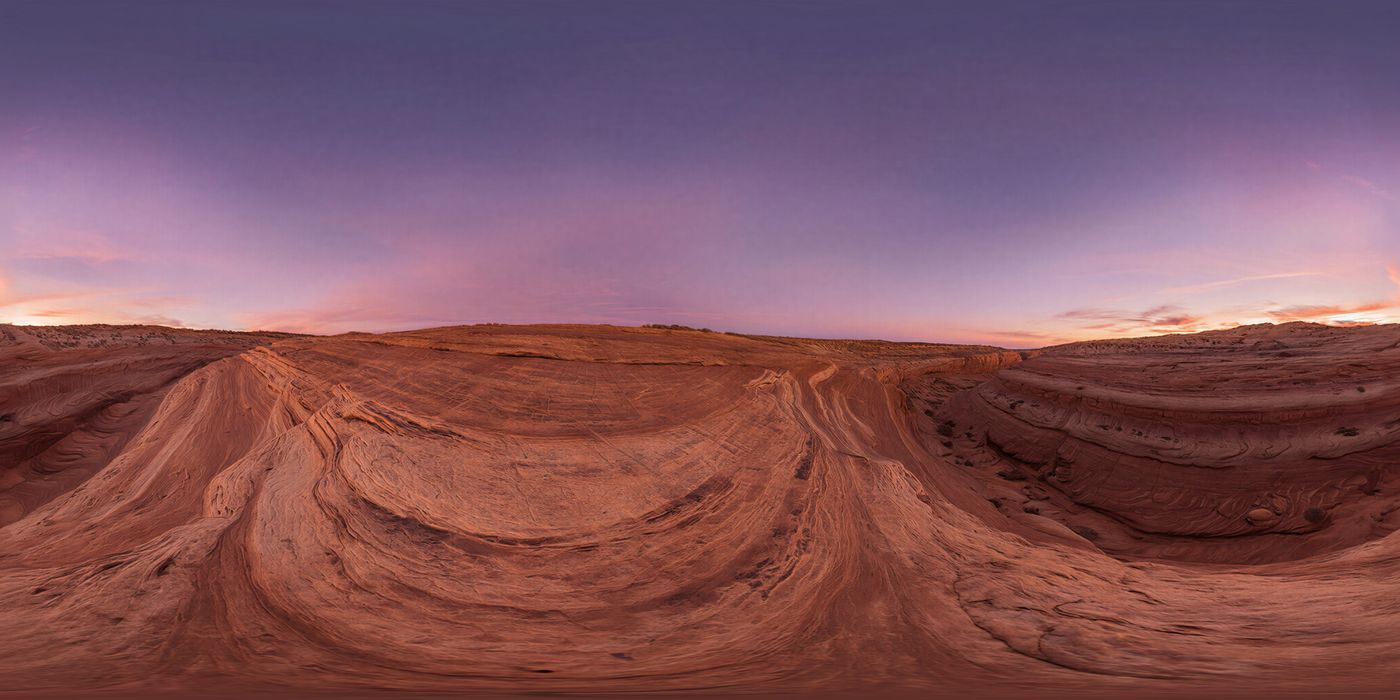
With no skybox loaded, the viewer shows this desert. The prompt reads Dream up your world.
A download is that same scene as a flat equirectangular file.
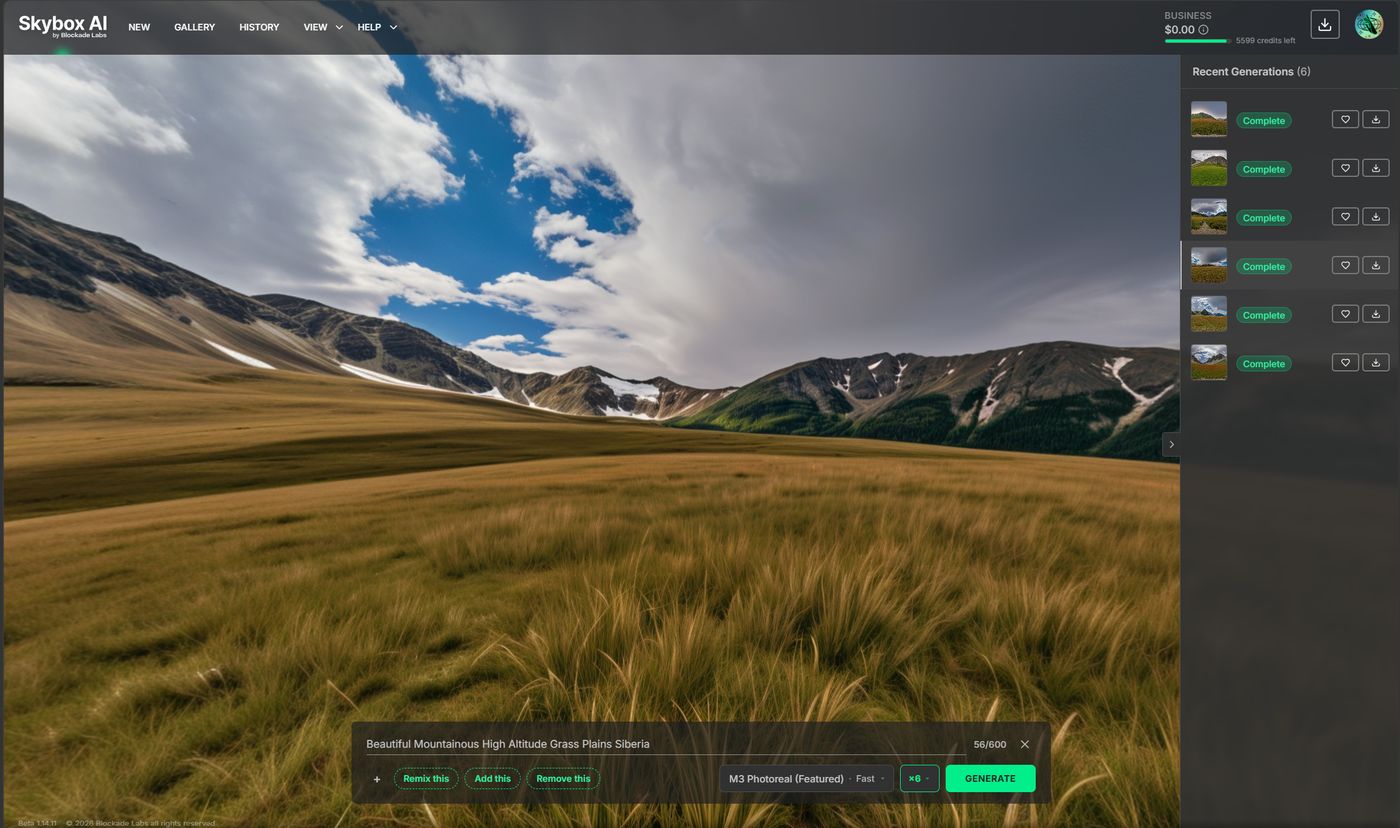
Tools that need a source image (such as Remix or Image2Pano) are added from the prompt bar with +. With a skybox loaded, the bar offers Remix this, Add this, and Remove this. Recent Generations sits on the right.
# View
Open View in the top bar (also duplicated near the top of the profile / hamburger menu). Options:
| Control | Label in UI | What it does |
|---|---|---|
| Show UI | Show UI | Toggle chrome on or off (prompt bar, navigation, and related overlays). Off = unobstructed 360° view |
| Autopan | Autopan | Automatic horizontal pan without dragging |
| Enable Gyro | Enable Gyro | Device orientation control. Shown on mobile only |
# Immersive view (Enter VR)
On supported desktop browsers with a WebXR / VR headset available, an Enter VR control appears on the viewer (when the UI is shown). It starts an immersive VR session so you can look around the skybox in headset mode. It does not appear on mobile, when VR is unsupported, or when Show UI is off.
# Share, Download, and Like
After a generation completes (and whenever a skybox you own is loaded), the prompt bar exposes:
| Control | What it does |
|---|---|
| Share | Copies the generation share link to the clipboard (tooltip: Copy link, then Copied to clipboard.) |
| Download | Opens the Download window to pick size and format. Finished files also appear in Export Status |
| Like | Heart control. Saves to or removes from Likes (tooltips: Saved to Likes / Removed from Likes). Liked items appear under History with Show only Likes |
Downloads and exports: Skybox exports. Organizing likes: History and projects.
# Prompt bar
The prompt bar is the always-on control strip for generation. Create, Remix, Edit, and Image2Pano share one bar. Add tools with + (tool pills), not separate Create / Remix tabs.

# Core controls
| Control | Required? | What it does |
|---|---|---|
| Text | Yes | Positive prompt: describe the scene or change you want |
| Negative text | No | Subjects or objects to avoid (not style or quality words) |
| Style | Yes | Style dropdown. Selects look, model, and credit cost |
| Quality | Plan-dependent | Quality / variant (for example Fast, Standard, Enhanced). Availability depends on plan and model |
| Batch generation quantity | Plan-dependent | How many skyboxes to queue in one run. Limited by plan |
| Generate | — | Starts the run. Label can change when a tool is active (for example Remix or Convert) |
Prompt tips: Prompting. Styles and costs: Get Skybox Styles · Quality. Batch limits: Pricing and limits.
# Tools (+)
Use + to add a tool for this generation. Active tools appear as pills above the settings row. Typical tools:
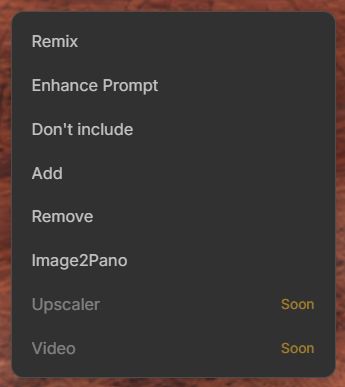
| Tool | Use |
|---|---|
| Remix | Restyle an existing skybox or upload while keeping structure |
| Edit (Add / Remove) | Change a region of the current skybox (how-to) |
| Image2Pano | Turn a flat or partial image into a 360° panorama (how-to) |
Product how-tos: Create · Remix · Edit · Image2Pano. Prompting: Prompting guide.
3D mesh export remains available where shown in the product; GLB export is deprecated from October 31, 2026.
# Recent Generations
Recent Generations shows live status for recent generations, including items in a batch. It can open when you submit more than one skybox at once, and you can collapse it.
Each row is a thumbnail and a status pill. A finished row has Like and Download. A queued row shows Dispatched or its place in line. Select a complete row to load it in the viewer. The open viewer above shows the same list beside the skybox.
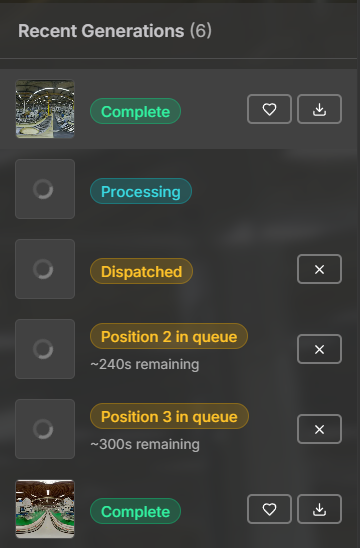
Organize and filter older work in History and projects.
# Export Status
The download icon in the top bar opens Export Status: the queue and history of skybox downloads. Each row shows the generation id, resolution, format, and Complete, with View and download.
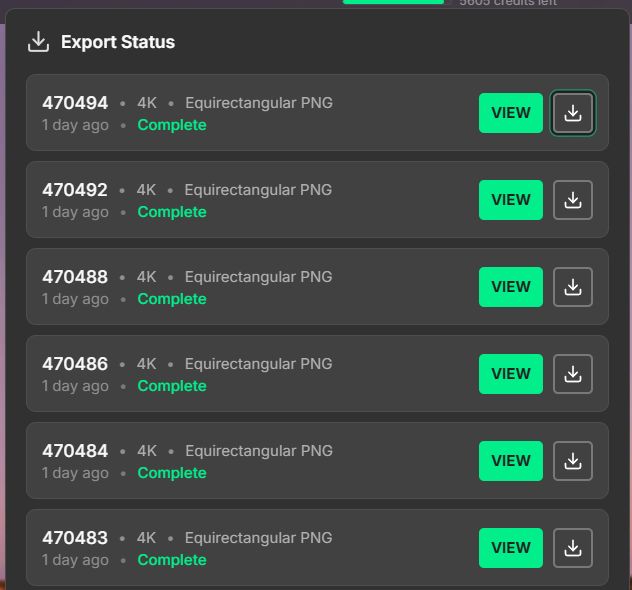
Start an export from a completed skybox, then use this list to reopen finished files.
Formats and plan limits: Skybox exports. An improved 32-bit HDRI pipeline (.hdr / .exr) is in progress.
# Top navigation
The top bar is in the viewer shot above. Left to right (desktop, signed-in):
| Item | Role |
|---|---|
| Logo | Opens Skybox AI |
| New | Starts a clean create flow via the Wizard (style, quality, quantity, and related steps) |
| Gallery | Curated and published starter skyboxes at /gallery. Selecting one can prefill prompt, negative text, and style. Gallery skyboxes are for inspiration; they are not downloadable from Gallery |
| History | Your generations (/dashboard/history) |
| View | Show UI, Autopan, Enable Gyro (mobile) |
| Help | Guide, sample pack, submit a request |
| Credits | Plan credit balance |
| Download | Export Status |
| Profile | Opens the hamburger menu |
Signed-out visitors see Log in and Sign up instead of credits, download, and profile.
Gallery is the grid under that item. Hover a skybox and choose Start with this. See Create a skybox.
# Help menu
- Guide — Using Skybox AI (Help Center)
- Get sample pack — Game, Visualization, and Studio packs (a PNG preview and an EXR for each scene)
- Submit a request — billing, technical support, report a generation, feature request
# Hamburger menu (profile)
Opened from the profile image. Main items (signed-in):
| Item | Notes |
|---|---|
| Profile header | Username, credits (mobile), Log out |
| View controls | Same Show UI / Autopan / Gyro as the top View menu |
| New | Wizard / clean create |
| Gallery | /gallery |
| Updates | Product updates (badge when unread) |
| History | /dashboard/history |
| Projects | /projects |
| Profile | /profile/edit |
| Plans | /plans |
| Usage | /usage. Every credit spent is listed on skybox.blockadelabs.com/usage (opens new window) |
| Credits | /credits |
| Concurrency | /concurrency |
| Billing | /billing |
| API | Submenu: Manage API Keys, API Documentation |
| Prompting guide | /prompting-guide |
| Service status | status.blockadelabs.com |
| Licensing | Licensing modal |
| Submit a request | Feedback submenu |
| Legal | Terms of Service, Privacy Policy |
# Profile
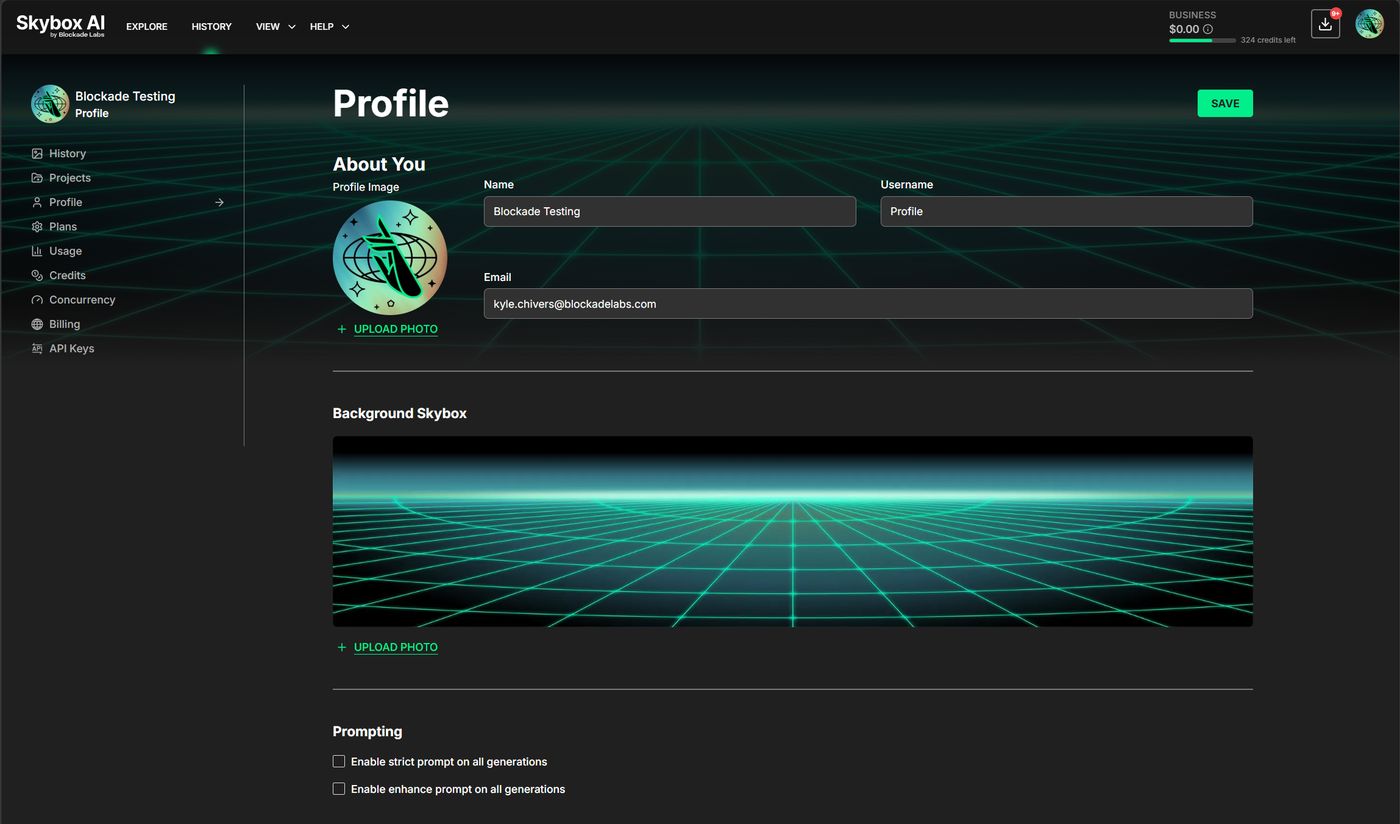
Profile in that menu opens the account page: name, username, email, profile image, and a Background Skybox for the profile. Prompting on the same page can turn on strict prompt or enhance prompt for every generation.
# View your own 360° images or drag and drop into the browser
To restyle an uploaded panorama, add Remix with + on the prompt bar and choose your image (or pick one from History), or drag and drop a 360° image into the browser. You can change style, time of day, weather, and more while preserving structure.