
# Create a skybox
Step-by-step for your first generation in the web app.
# 1. Open Skybox AI
Go to skybox.blockadelabs.com (opens new window). Sign up (opens new window) or log in (opens new window). Account help: Account and login.
# 2. Start from Gallery or New
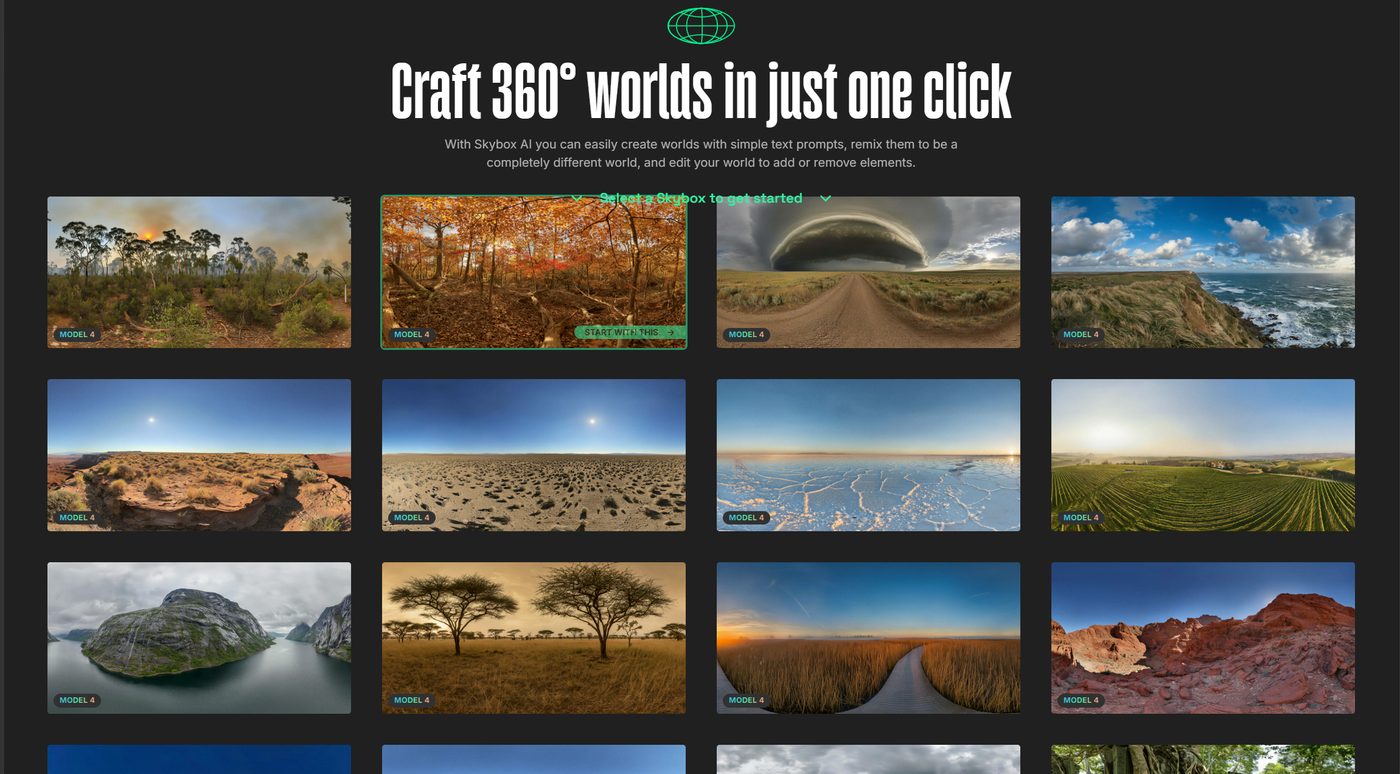
Gallery is a grid of finished skyboxes. Hover one and choose Start with this. That loads the scene in the viewer and fills the prompt, Don’t include, and style.
New opens the wizard. Step 1 is the starting point:
- Browse Gallery, or pick Game Skies, Natural Skies, or Interiors. Each of those remixes a random skybox from that project.
- Custom is a prompt only, with no remix source.
- Or start from your own image takes an equirectangular JPG or PNG under 50MB and opens Remix.
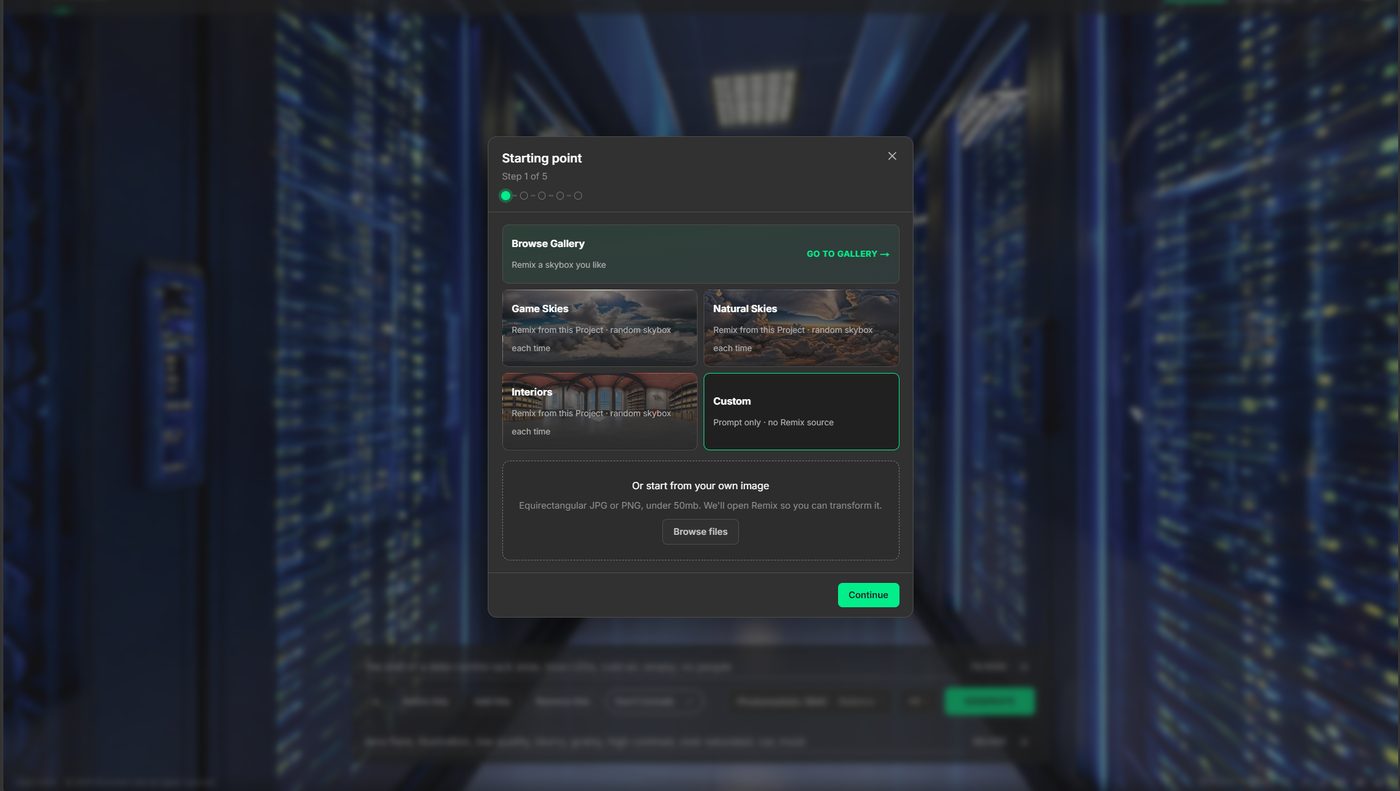
You can close the wizard and change the same settings on the prompt bar.
To bring in your own panorama later, see View your own 360° images or drag and drop into the browser.
# 3. Describe the skybox
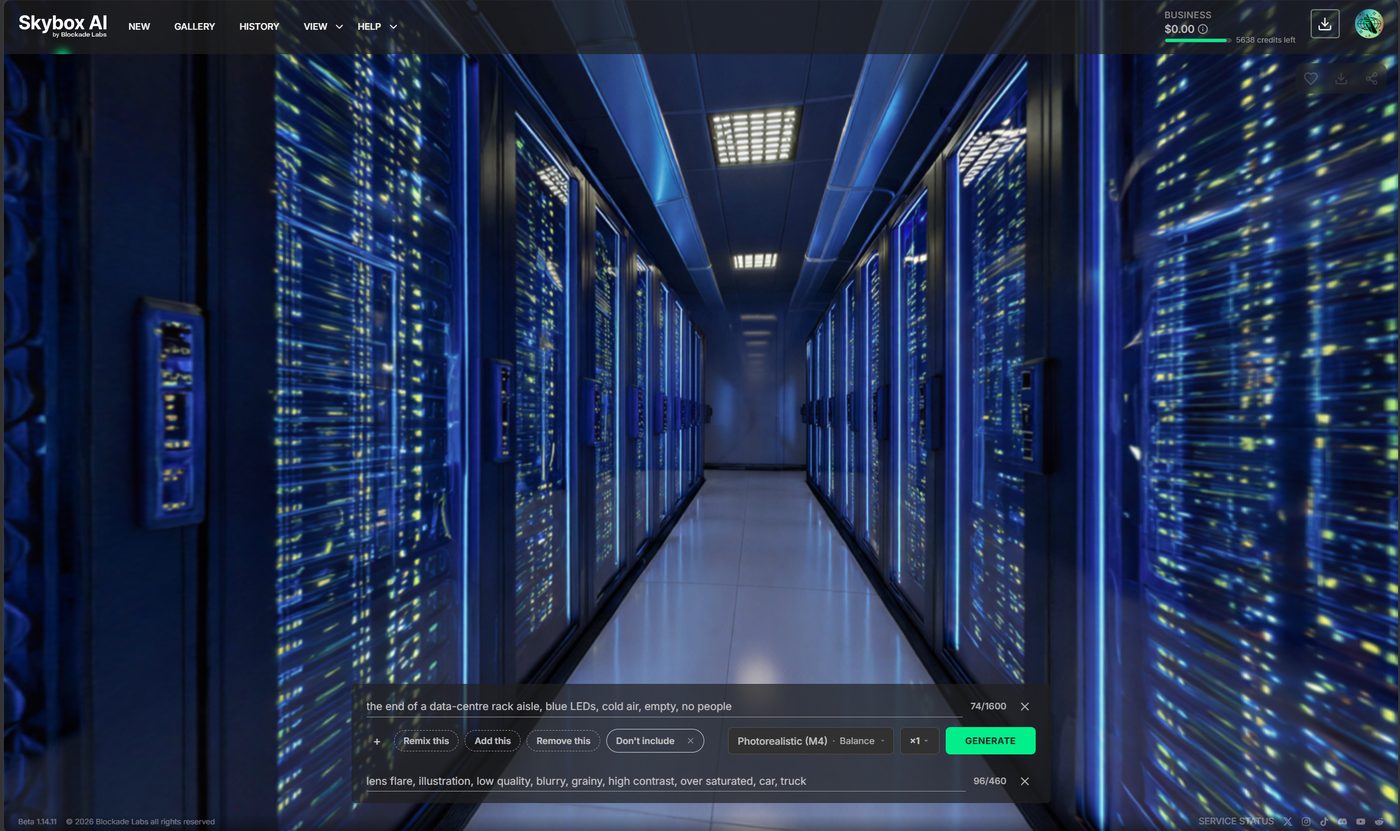
Write what should appear. You can change this later on the prompt bar. Enhance Prompt rewrites the wording when you generate. Don’t include is the list of things to keep out.
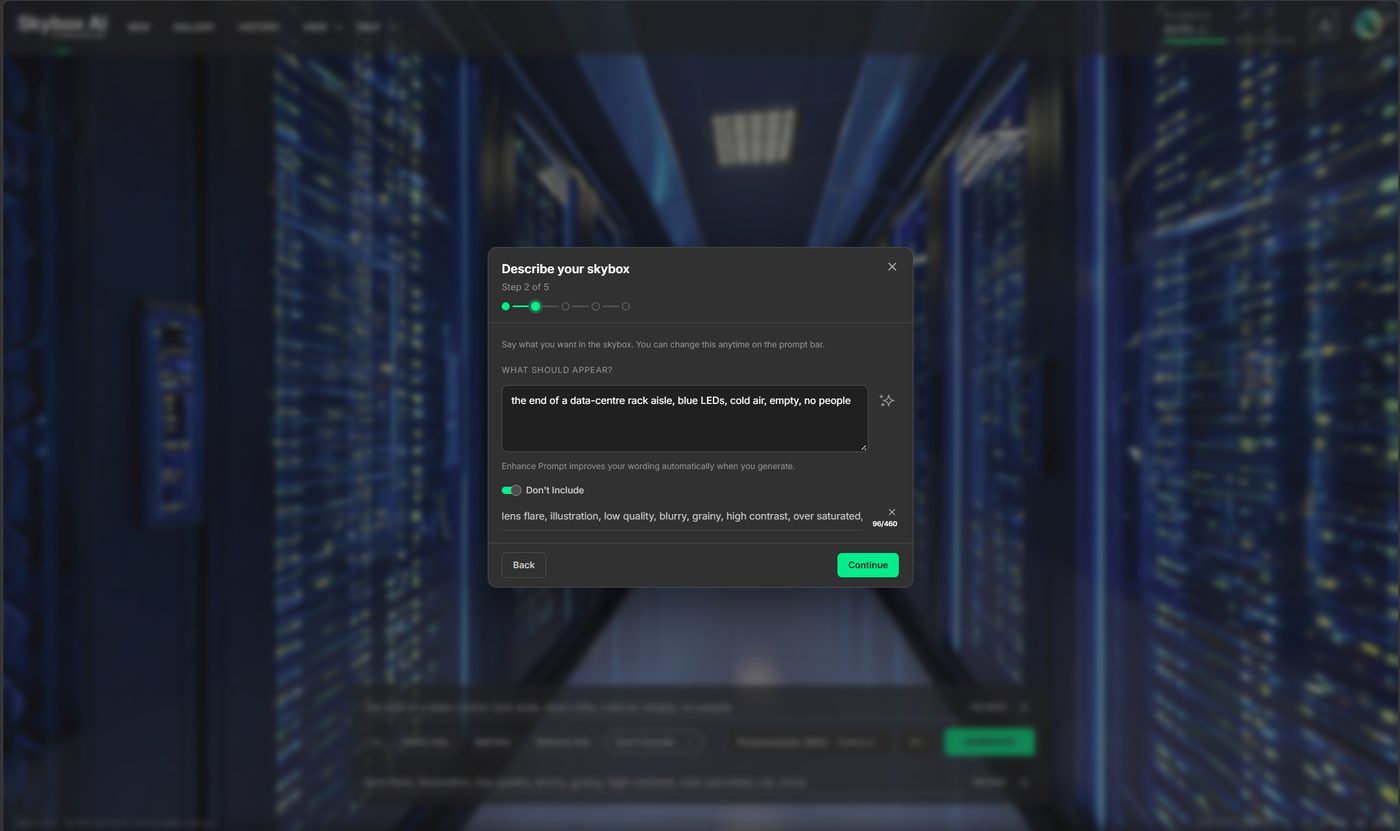
On the prompt bar, + adds Don’t include the same way. The menu is on Workspace.
Prompt shape: Prompting.
# 4. Choose quality
Fast, Balance, or Detail. This is how much to spend on the generation.
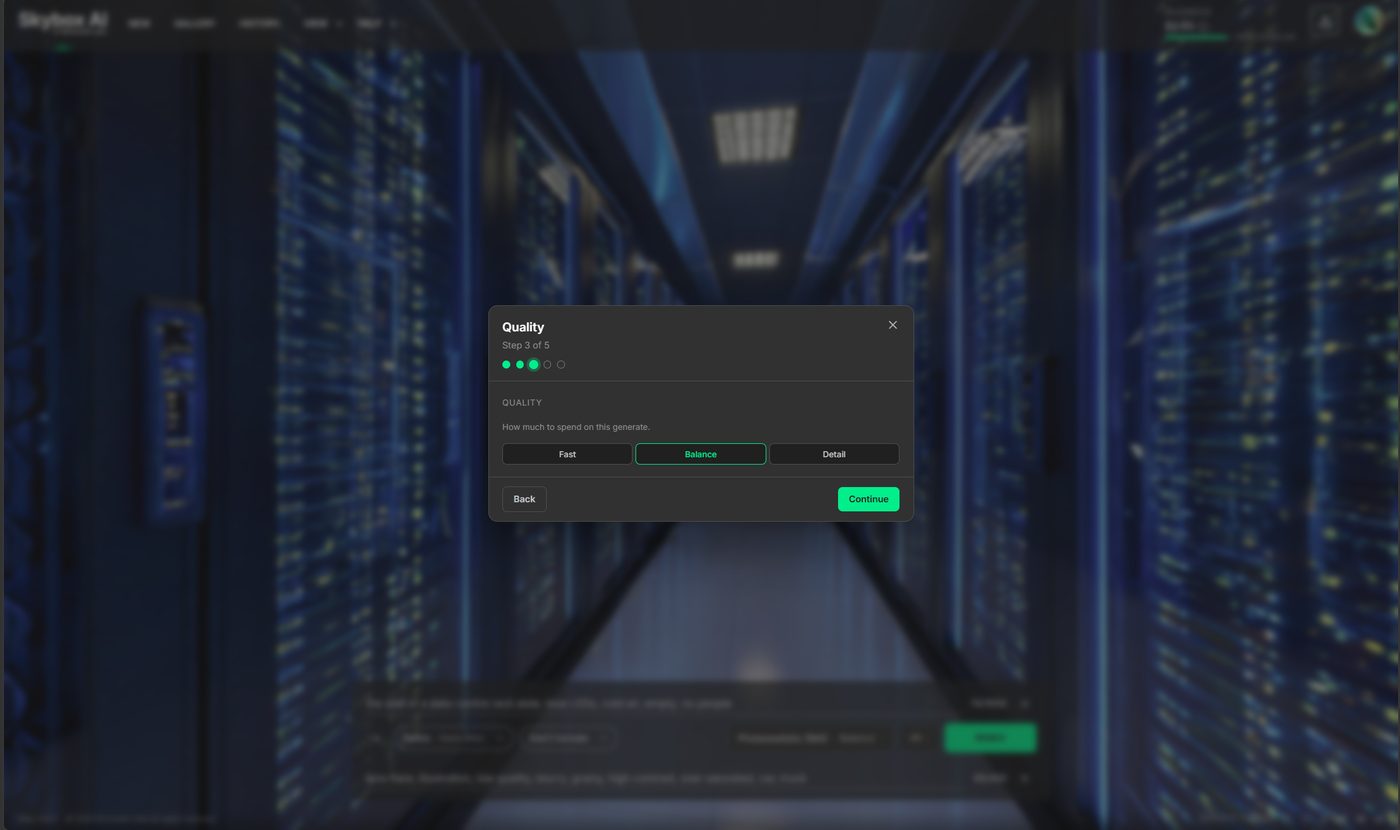
Costs and typical times: Quality.
# 5. Review and generate
The last step lists the starting point, remix source, prompt, negative, enhance, quality, and style. Change any line with Edit. Then pick how many skyboxes to make: 1, ×2, ×4, or ×8. Choose Generate.
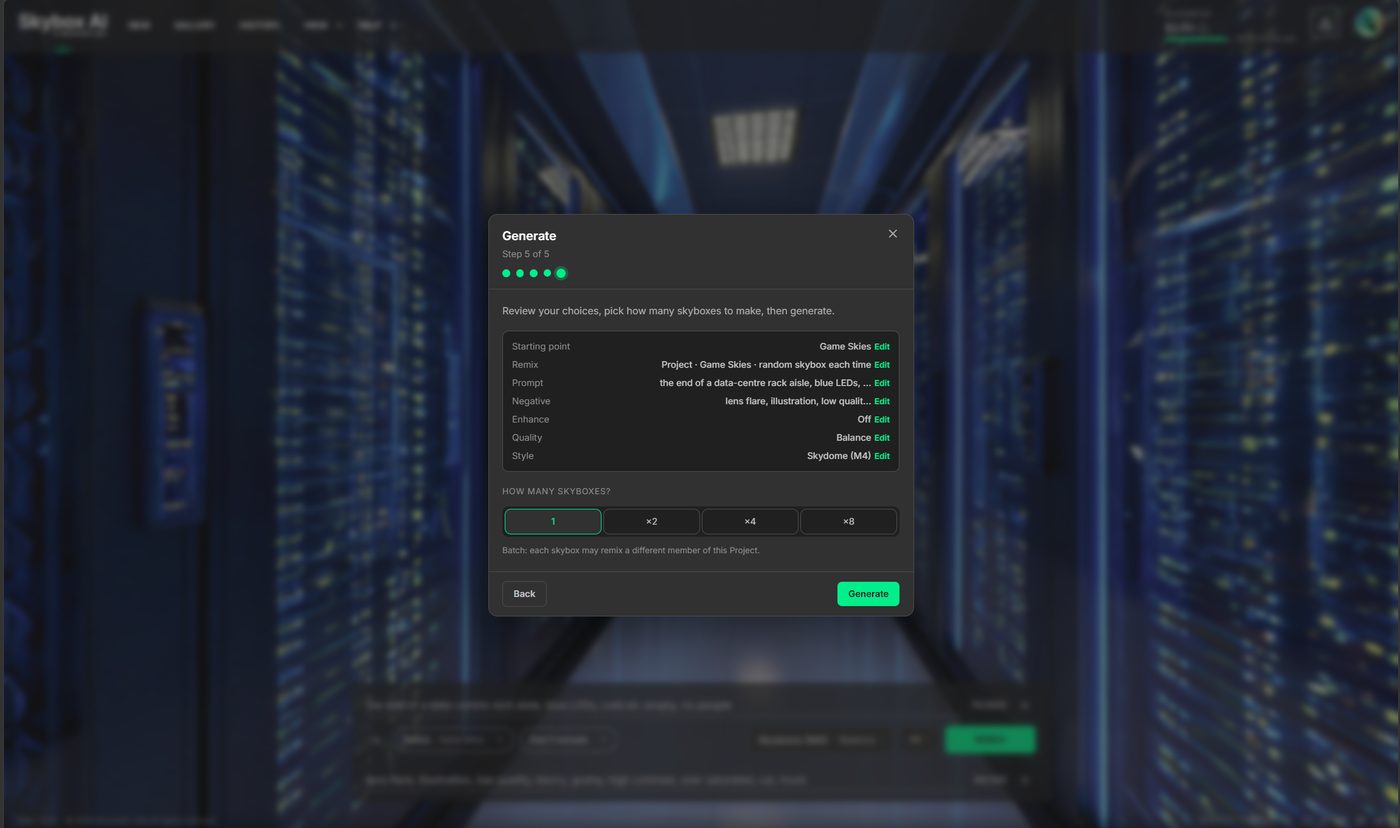
Each run is a generation. It shows under Recent Generations while it moves through the queue: dispatched, processing, then complete. A finished one is Generation #N in History. The finished asset is your skybox. The list, including Like and Download on a complete row, is on Workspace.
Typical times: about 15 seconds for Model 3 (Fast), about 60 seconds for Model 4 Standard, about 120 seconds for Model 4 Enhanced.
# 6. Like or download
On a completed generation, the heart saves it to Likes. The download icon opens the Download window for size and format. Track exports in Export Status.
Formats: Skybox exports. Controls overview: Workspace.
# Tips
- To remix, edit, or convert an image, add a tool with + on the prompt bar. Overview: Workspace. How-tos: Remix · Edit · Image2Pano.
- If the horizon sits too high or too low, use Shift Horizon in Remix settings.
- Plan prices: plans (opens new window).
# Building an app
The request and the key stay on your server. See Implementation considerations.